Insights Analytics AI
Introduction
Support for generative AI (Gen AI) has been introduced with the launch of Xentelligent Insights Analytics 2.0 that offers access to transit data via natural language query by text or voice. Through the use of a Model Context Protocol (MCP) server, Insights 2.0 can be queried by AI chatbot agents, making access to your data easy and colloquial. Insights 2.0 initially supports querying via Claude by Anthropic, using any of the currently available models such as Opus, Sonnet and Haiku. Insights 2.0 also uses Claude to provide AI-generated summaries in scheduled reports. The new Gen AI features of Insights 2.0 make accessing complex data simpler and faster, providing actionable insights to help you better understand your business operations.
Requirements
To use the Gen AI features of Insights 2.0, you will need a subscription to Claude.ai and have at least an individual Pro plan that supports connection with Insights 2.0. An enterprise Team plan is more suitable for a business with five members and above. All plans are subject to usage limitations so pick the plan that suits you best. Chatting with Insights is done through your web browser e.g., Chrome, Safari, or Firefox; make sure you have the latest version installed.
Connecting with Insights
To get started, you need to connect your Claude account with Insight Analytics 2.0.
-
Contact Xentrans Support and request credentials to connect your Claude account with Insights 2.0. This is in the form of an OAuth Client ID and OAuth Client Secret, which when added will finalize your Claude connection.
-
Log into your Claude account and go to ‘Admin Settings > Connectors’.
-
Click ‘Add custom connector’. In the name field, enter a name for the new connector, for example Xentelligent Insights. In the Remote MCP Server URL enter the following:
https://mcp.insights.xentelligent.com/mcp -
Click the Advanced Settings drop-down to reveal the OAuth fields as shown below.
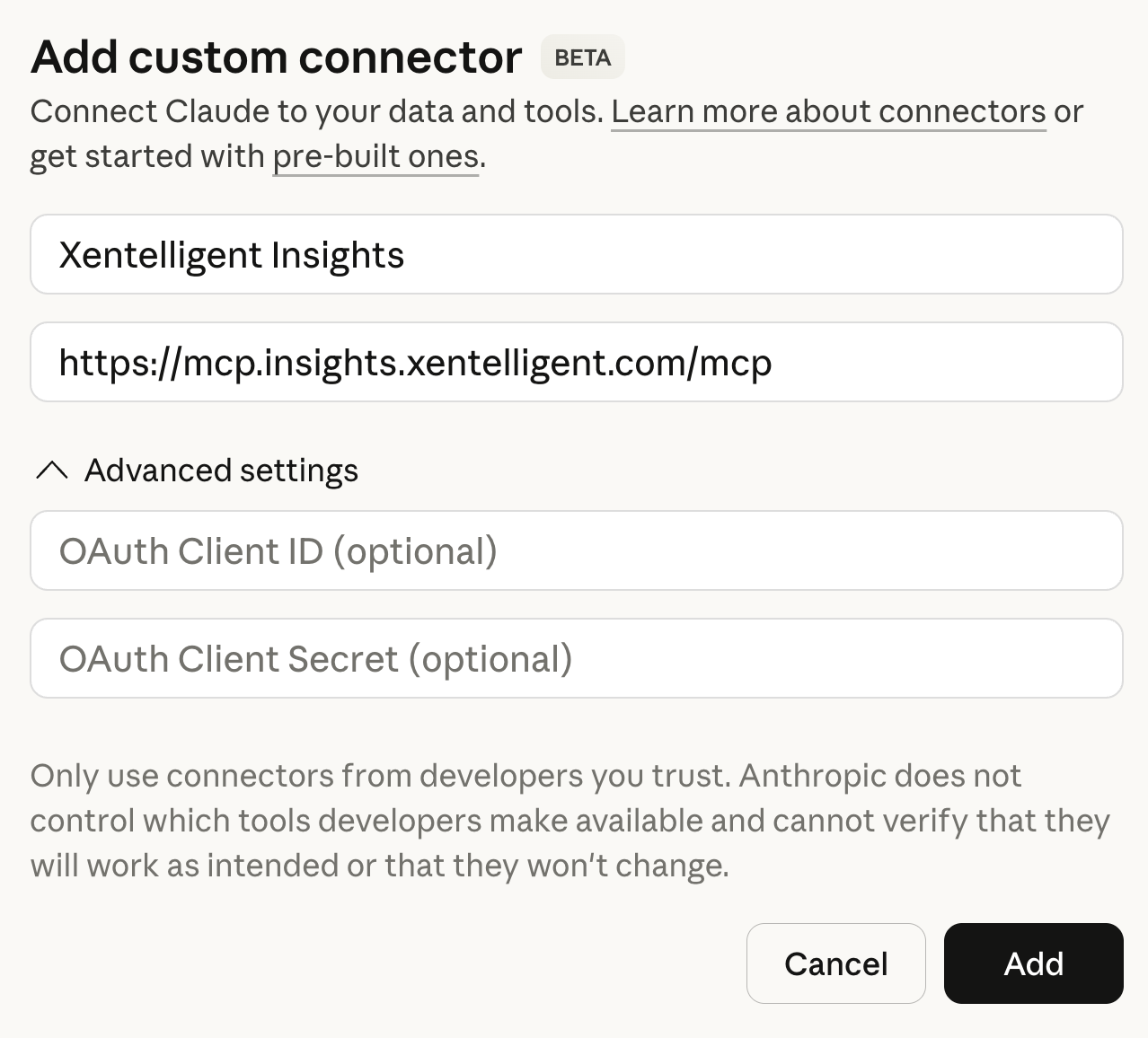
-
Enter the OAuth Client ID and Client Secret that you received from Xentrans Support.
-
Click ‘Add’ to finish the MCP configuration.
-
From your web browser, go to your claude.ai account.
-
From the main Claude chat prompt, click on the ‘Search and Tools’ icon, scroll down to the Insights connector you added, and toggle on as shown below.
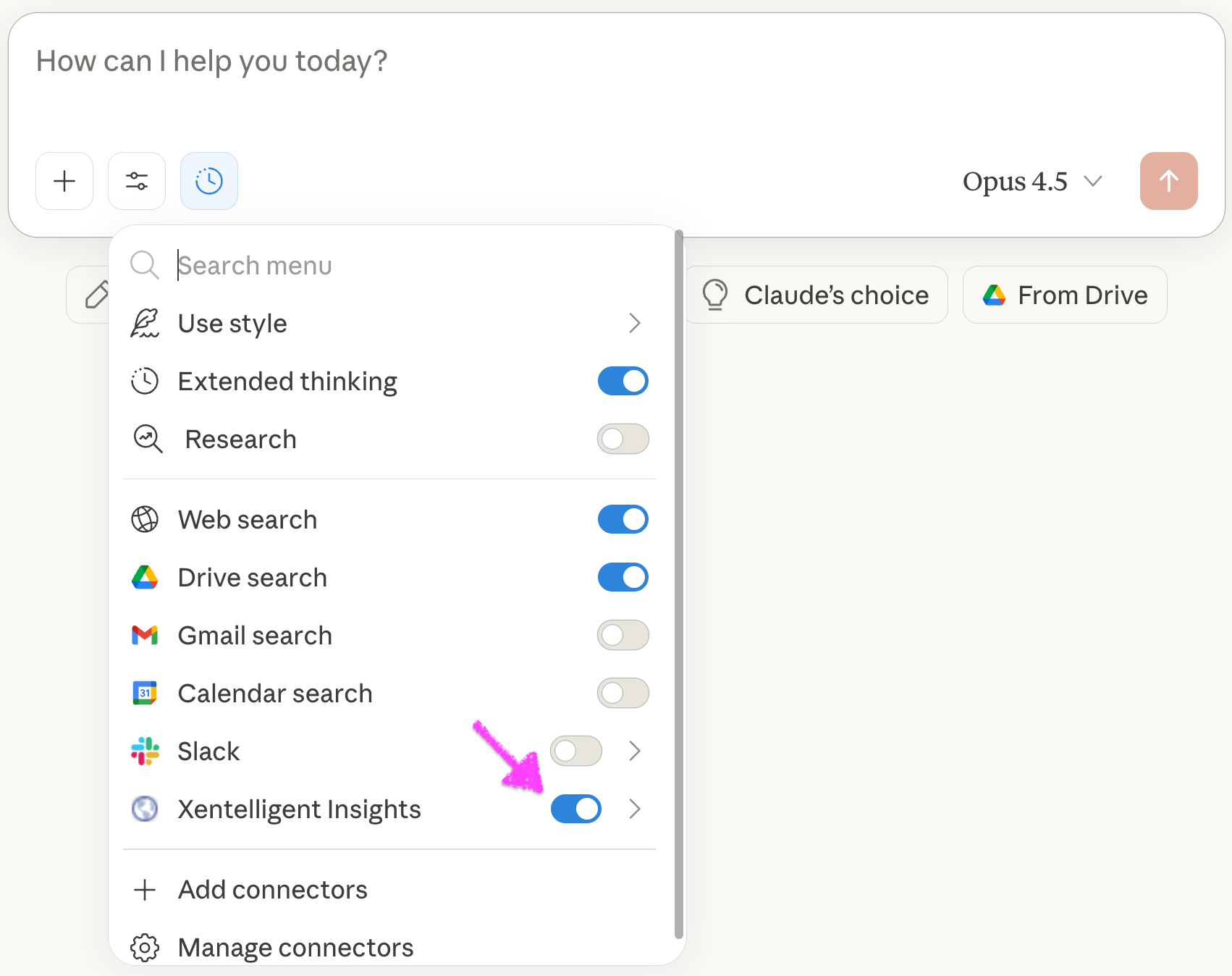
-
Click on the right arrow next to the toggle button to reveal the tools available with the Insights 2.0 connector. Click on ‘Enable all tools’ to enable Claude to query all available Insights data for your account, as shown below. Available tools may vary depending on your Insights account.
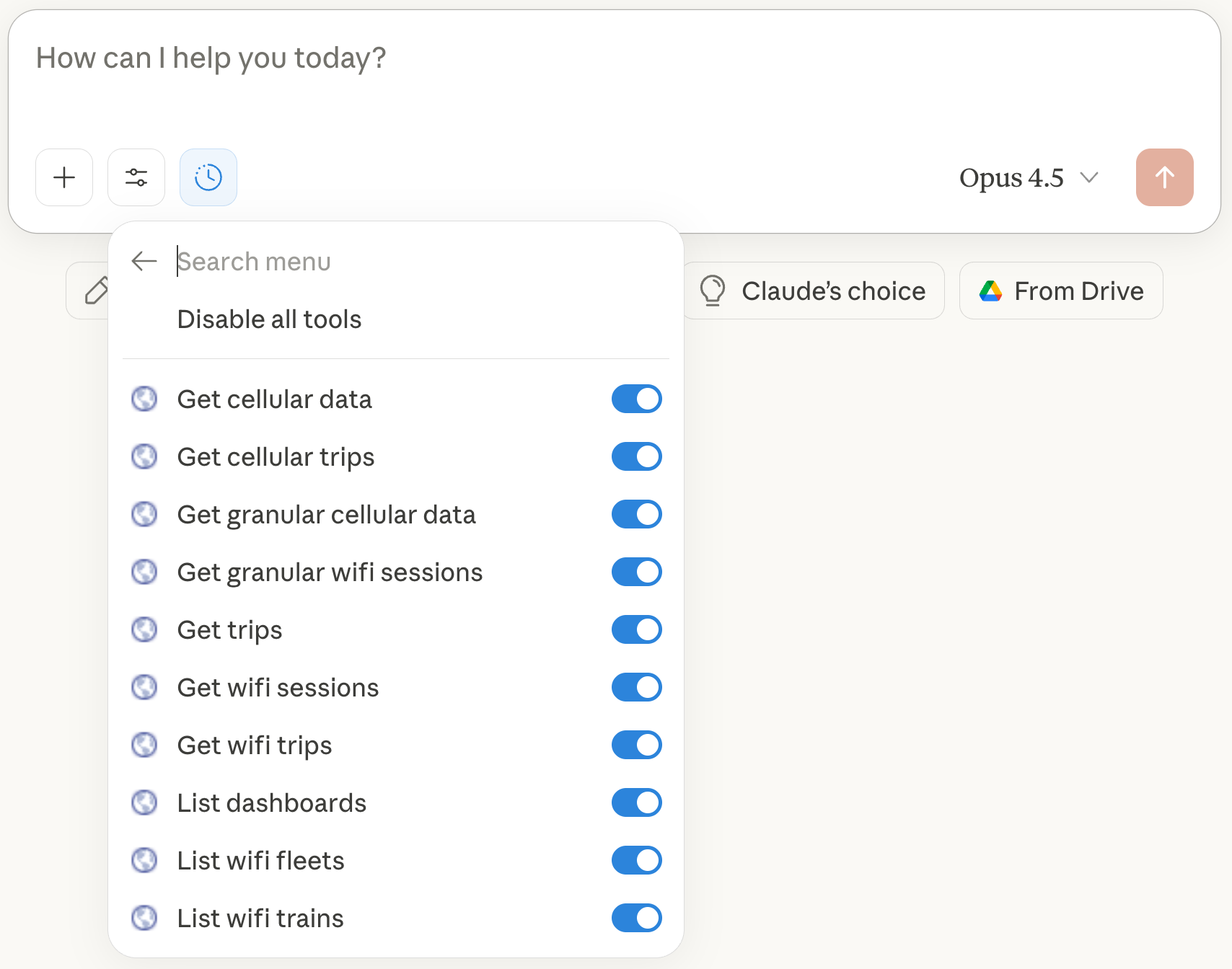
-
We recommend that you also toggle on the ‘Extended Thinking’ option within the Claude settings as shown below, which may provide better results; some complex queries may take longer to generate a response.
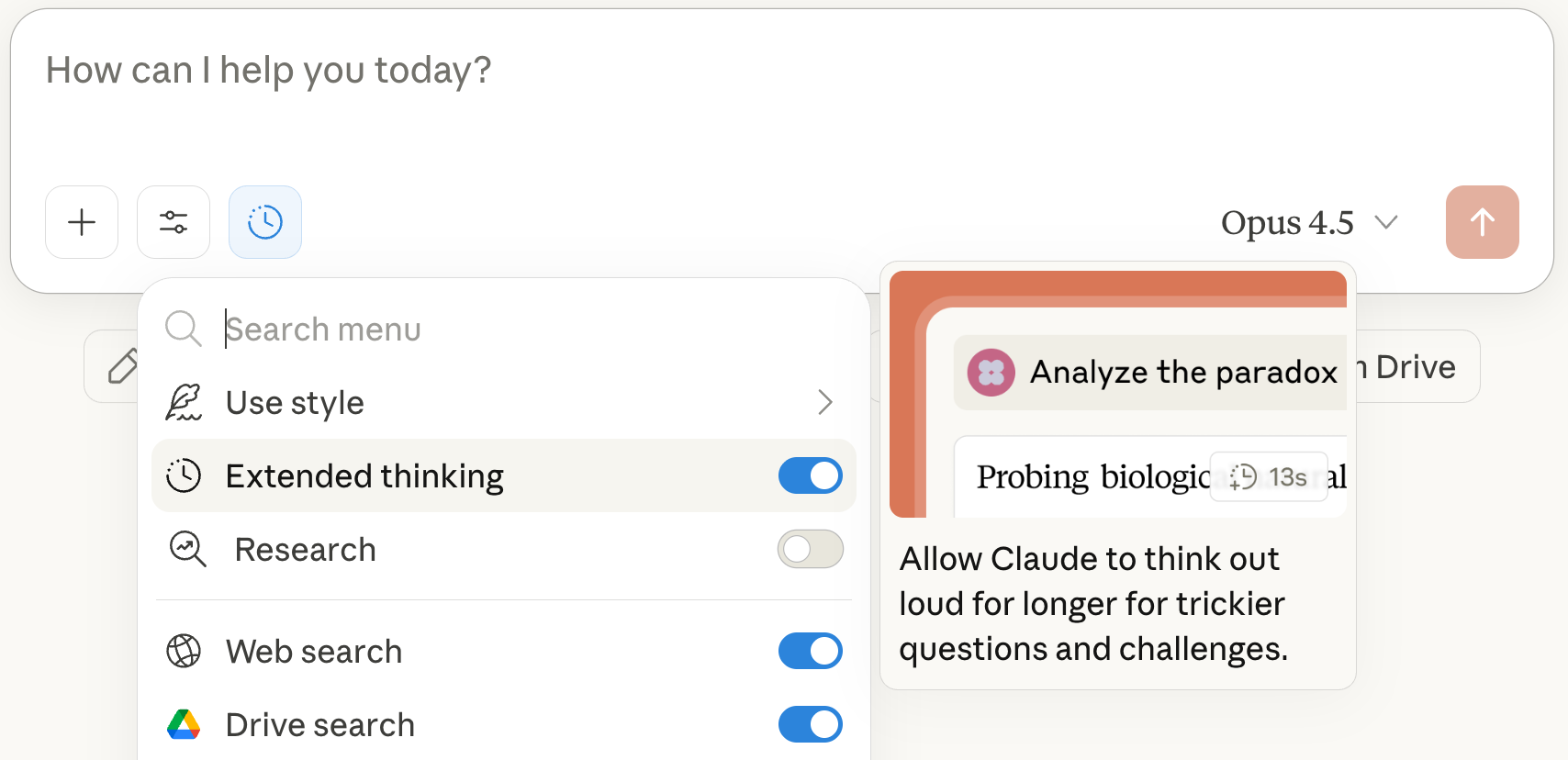
-
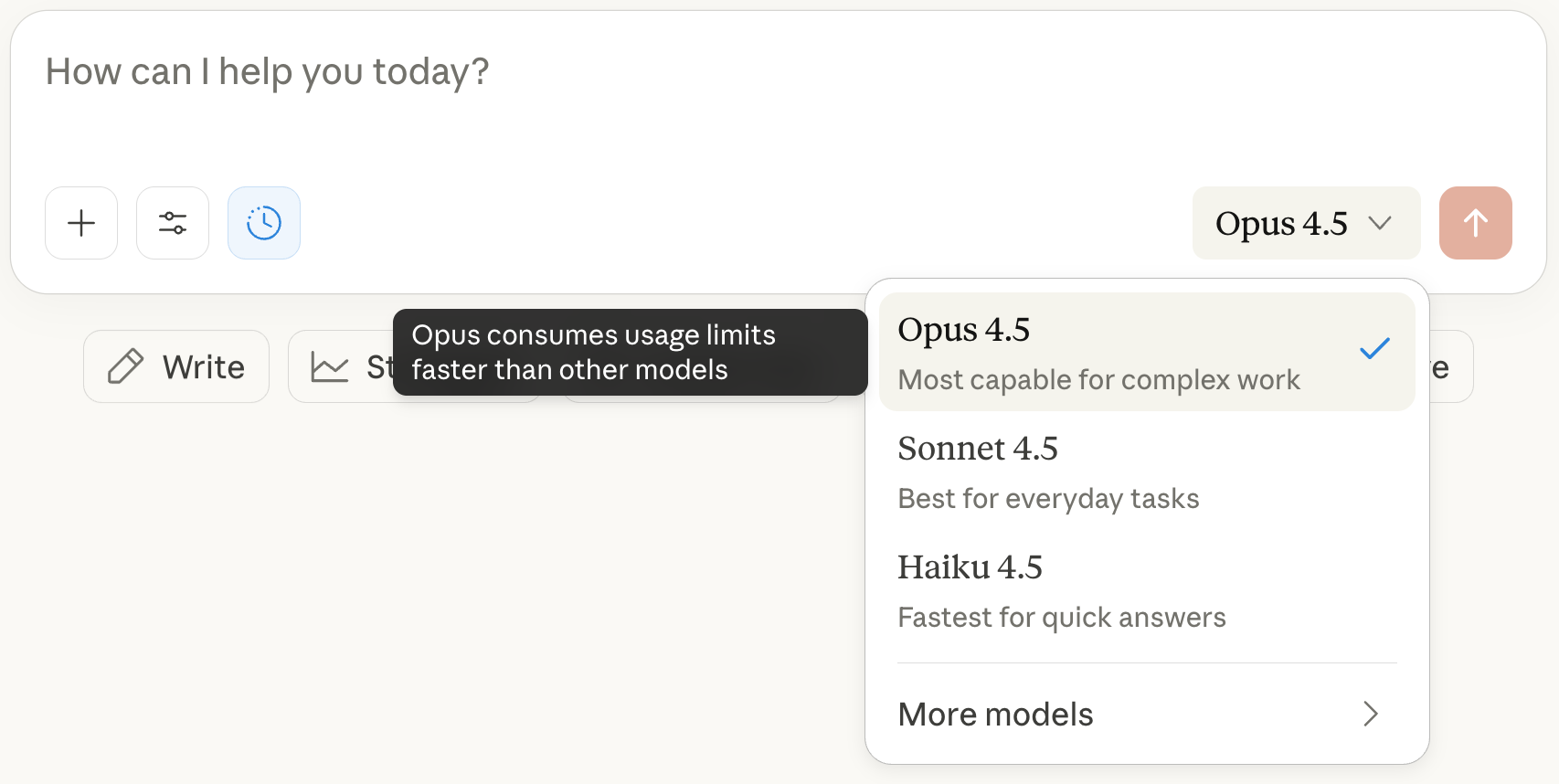
In the Chat window, select the chat model you would like to use, as shown below. We recommend Opus 4.5 or later for best results.
-
Your Insights 2.0 account is now ready for chatting via Claude. In the chat window, type a question and click the Send button.
Future Enhancements
Xentrans will introduce a built-in AI agent to Insights in a future version. Using the Claude API, the agent can be opened from within the Insight user interface, without the need for a separate web browser. There will be some limitations as to what the built-in agent can do functionally; for example, the built-in agent does not have access to some artifacts such as diagrams and documents, does not offer Research mode, or integrate with external resources such as Google Drive, Gmail or Slack. However the built-in agent will be included in your Insights subscription and does not require an additional Claude subscription.